What media cache is
When Premiere Pro imports and works with video or audio, it can create temporary helper files so playback, waveform display, and media access are faster. These files can build up over time.
Cache cleanup is not the same as deleting your project, sequence, or camera originals. The important rule is to target generated cache files only.
When cache cleanup helps
Cache cleanup can help when old projects are finished, storage is getting tight, or Premiere feels messy after heavy editing sessions. It is not a magic fix for every slow timeline, but it removes one common source of clutter.
If the project is slow because of heavy codecs, effects, multicam, high-resolution footage, or weak hardware, proxies and timeline simplification may matter more than cache cleanup alone.
Where LiteCut fits
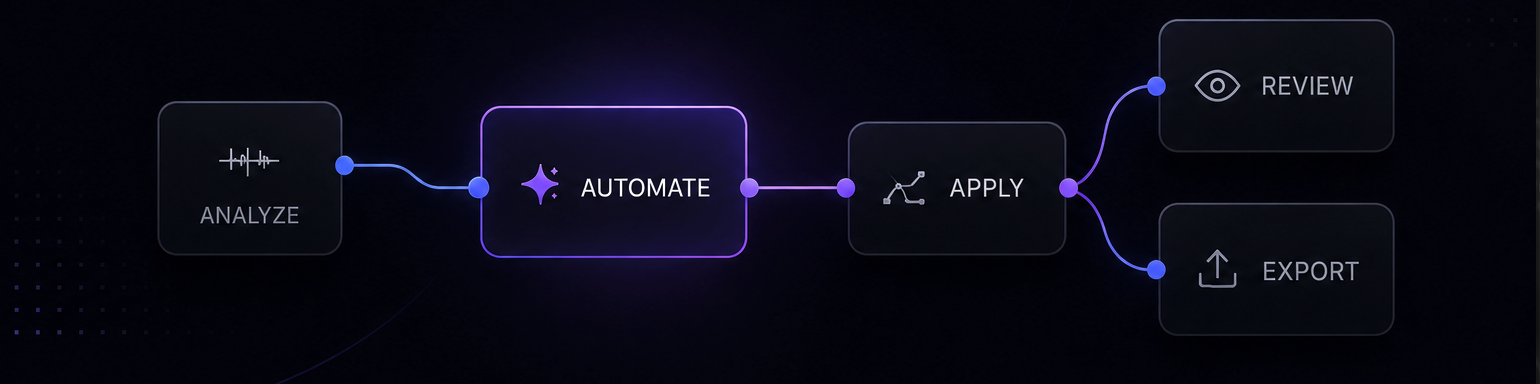
LiteCut is designed for everyday Premiere Pro maintenance: turning off automatic waveform import when it gets in the way, cleaning safe cache-style files, opening the cache folder, and supporting a lightweight proxy workflow.
The core promise is simple: reduce friction without deleting original media.
Workflow
Step-by-step workflow
- 01
Close or save active work first
Before any cleanup, save the project. If you are doing a deep manual cleanup, closing Premiere Pro is usually safer.
- 02
Identify the cache location
Check Premiere Pro media cache settings or connect the cache folder inside LiteCut, so you know exactly which generated files are being targeted.
- 03
Start with light cleanup
Remove common generated cache files first. Avoid broad deletion patterns unless you are sure the target folder is only cache-related.
- 04
Use proxies for heavy footage
If timeline playback is still slow, cache cleanup is probably not enough. Create proxies for high-resolution, long-GOP, or heavy camera files.
- 05
Reopen the project and verify playback
After cleanup, open the project and let Premiere rebuild anything it needs. If cache files return, that is normal; they are generated as Premiere works.
Practical notes
- Cache files can be rebuilt. Original camera files cannot be rebuilt if you delete them without a backup.
- Do not clean random folders just because they are large.
- If a deadline is close, use light cleanup and proxies before experimenting with deep manual deletion.
Common mistakes
- Deleting folders without confirming whether they contain originals, proxies, previews, or generated cache.
- Expecting cache cleanup to fix codec-heavy playback on its own.
- Leaving automatic waveform generation on when it slows down large import sessions.
FAQ
Questions editors usually ask
Will clearing Premiere Pro cache delete my original media?
Clearing media cache should target generated files, not your original footage. The risk comes from deleting the wrong folder manually, so always confirm the location first.
Why does Premiere rebuild cache after I delete it?
That is normal. Premiere recreates cache files when it needs them for media access, waveform display, and playback support.
Does LiteCut replace proxies?
No. Cache cleanup and proxies solve different problems. LiteCut helps with both maintenance and a simple proxy workflow, but heavy footage may still need proxies.
Make this workflow faster in Premiere Pro
Clean safe Premiere Pro cache files, manage waveform import friction, open the cache folder, and create lightweight proxies faster.