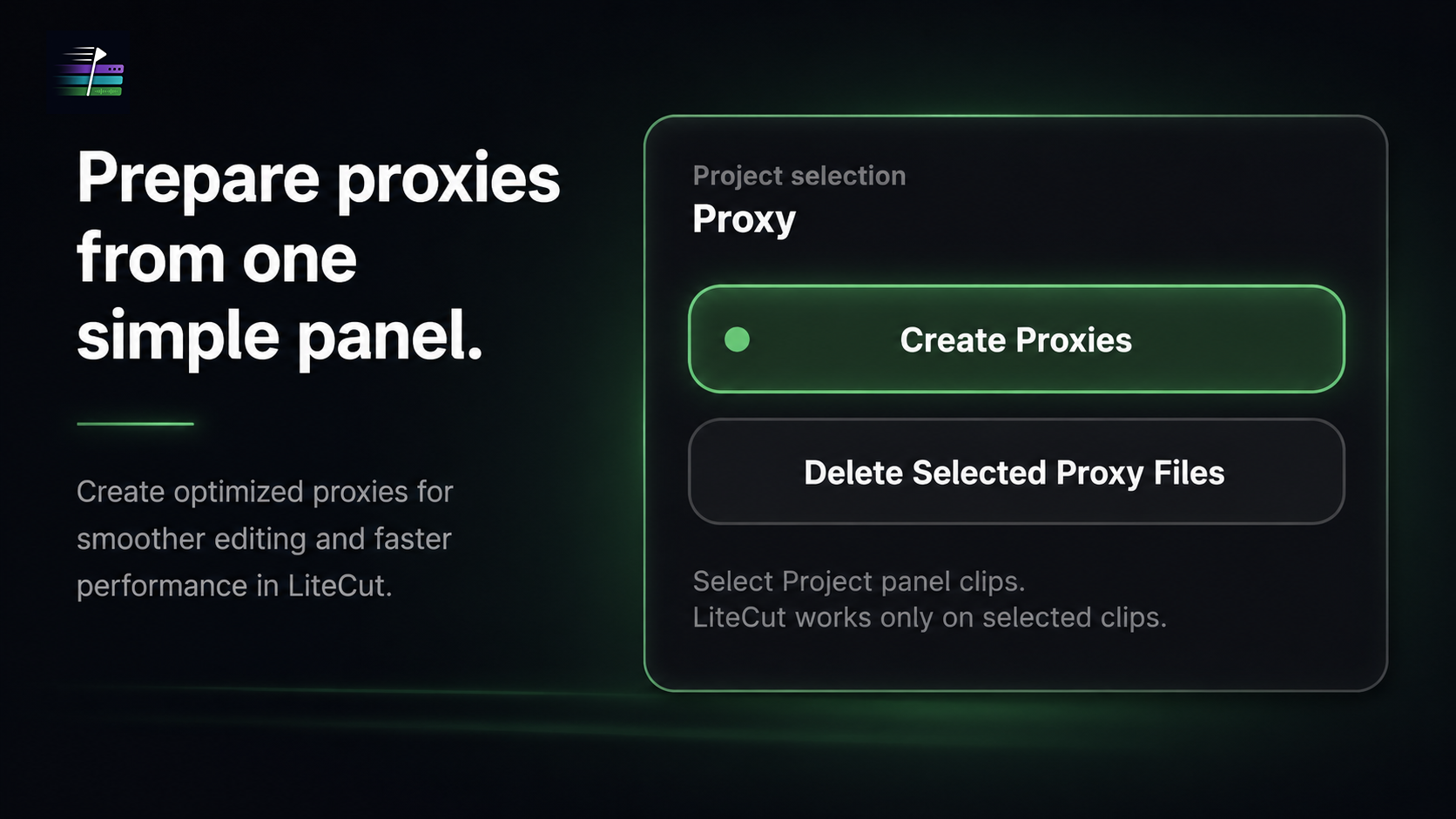
What proxies are
A proxy is a lower-weight copy of a source clip used for editing. The full-resolution original stays available, while the timeline can play a lighter version during the creative pass.
This is different from deleting, replacing, or converting the original. A proper proxy workflow keeps the relationship between proxy and source media clear.
When editors need proxies
Use proxies when footage is high-resolution, difficult to decode, stored on slower media, used in multicam, or combined with effects that make playback unreliable.
If lowering playback resolution is not enough, proxies are often the next practical step.
Creating, attaching, and enabling proxies
Premiere Pro includes proxy workflows for creating and attaching lighter files to original media. After proxy creation, use proxy viewing while editing and switch back to original media when checking final quality.
Always verify that proxies are attached to the correct source clips before deleting or moving anything.
Safe deletion principles
Proxy files can often be recreated, but deleting them at the wrong time can interrupt an edit. Do not delete source media, project files, or manually created proxy folders unless you know exactly what they contain.
LiteCut's proxy cleanup is intentionally scoped: it removes LiteCut-created proxy files inside the LiteCut Proxies folder, not original media.
Where LiteCut fits
LiteCut keeps a simple proxy action close to the editing workflow. It is not a replacement for understanding proxies, but it reduces the friction of starting a lightweight proxy workflow from inside Premiere Pro.
Adobe Media Encoder may still be part of the optional proxy workflow because proxy generation follows Adobe's standard Premiere Pro process.
Workflow
Step-by-step workflow
- 01
Identify heavy clips
Look for footage that causes dropped frames or slow scrubbing: high resolution, high frame rate, long-GOP codecs, multicam, or media on slower storage.
- 02
Create or attach proxies
Use Premiere Pro's proxy workflow or LiteCut's proxy action for selected clips. Keep proxy files organized in a predictable location.
- 03
Enable proxy viewing
Turn on proxy viewing while editing so Premiere uses the lighter files during timeline work.
- 04
Check the link
Confirm proxies are attached to the correct originals and that framing, audio, and timecode behavior are correct before continuing.
- 05
Protect original media
Do not delete or move original footage while using proxies. The originals remain the source for finishing and high-quality output.
Practical notes
- Proxies are for editing comfort, not a substitute for your source media.
- Keep proxy folders organized so they are easy to recreate or remove later.
- Use cache cleanup for generated clutter and proxies for heavy media playback.
Common mistakes
- Deleting original media because a proxy file exists.
- Forgetting to enable proxy viewing after creating proxies.
- Creating proxies on a slow or nearly full drive.
- Mixing manually created proxy folders with automated cleanup workflows without checking paths.
Related guides
Keep building the workflow
FAQ
Questions editors usually ask
Do proxies reduce final export quality?
A proper proxy workflow keeps original media linked for finishing. The proxy is for editing performance, not a replacement for the source file.
Does LiteCut use Adobe Media Encoder?
Only for the optional proxy workflow as part of Adobe's standard Premiere Pro proxy process.
Can I delete proxies after a project is done?
Usually, yes, if you have the original media and know which files are proxies. LiteCut removes only LiteCut-created proxy files inside the LiteCut Proxies folder.
Make this workflow faster in Premiere Pro
Clean safe Premiere Pro cache files, manage waveform import friction, open the cache folder, and create lightweight proxies faster.