Heavy codecs and high-resolution media
Some camera formats are designed for capture efficiency, not editing comfort. Long-GOP codecs, high frame rates, high bit depth, and large resolutions can make playback harder even on a capable machine.
If the timeline becomes smooth after creating proxies, the footage was probably a larger bottleneck than cache or preferences.
Playback quality, effects, and adjustment layers
Dropped playback resolution can help while editing, but effects-heavy timelines can still slow down. Noise reduction, stabilization, heavy color stacks, third-party effects, and multiple adjustment layers can make a simple cut feel slow.
Disable effects temporarily or render only the difficult section to isolate whether processing is the problem.
Media cache and waveform generation
Old cache files can take storage and add clutter, but they are only one part of performance. Waveform generation can also make imports feel slow when many audio files arrive at once.
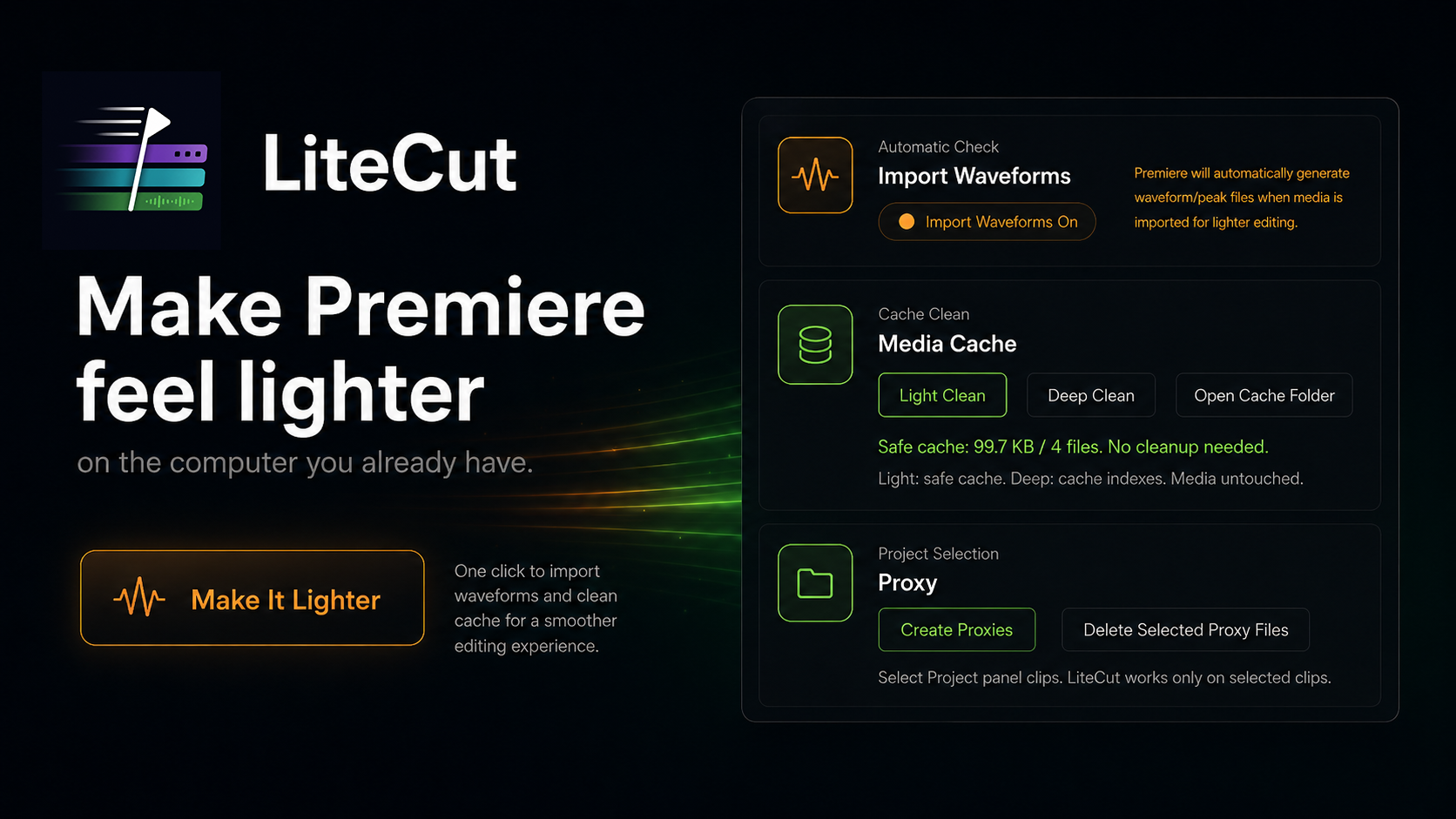
LiteCut helps with maintenance tasks like safer cache cleanup and waveform import control, but it should be used as part of a broader diagnostic workflow.
Storage speed and project complexity
Slow external drives, full disks, cloud-synced folders, and scattered media locations can all hurt responsiveness. Complex projects with many sequences, large bins, multicam clips, and linked assets can also feel heavier over time.
A cleaner project and a faster media drive can matter as much as any single Premiere setting.
Workflow
Step-by-step workflow
- 01
Lower playback resolution
Try a lower playback resolution first. If the timeline improves immediately, the issue may be decode or processing load.
- 02
Disable heavy effects
Temporarily toggle off color, stabilization, noise reduction, adjustment layers, and third-party effects to isolate processing bottlenecks.
- 03
Check cache and waveforms
Clean known cache locations if storage is cluttered, and turn off waveform generation when large imports do not need immediate waveform display.
- 04
Check media storage
Confirm media is on a fast, reliable drive with enough free space. Avoid editing directly from slow or unstable locations.
- 05
Create proxies
If the source codec is heavy, use proxies for smoother editing instead of repeatedly changing unrelated settings.
- 06
Simplify the project
Archive unused sequences, split large projects when appropriate, and keep active timelines focused.
Practical notes
- There is rarely one universal fix for Premiere Pro performance.
- Cache cleanup can help maintenance, but proxies help when media decoding is the bottleneck.
- Use a diagnostic order so you know which change actually improved the timeline.
- LiteCut helps with maintenance and simple proxy setup, not every hardware or codec limitation.
Common mistakes
- Clearing cache repeatedly while ignoring heavy source media.
- Editing high-resolution delivery files when proxies would be more practical.
- Leaving waveform generation on during large imports when it is not needed immediately.
- Assuming a plugin can solve hardware, drive, codec, or effect bottlenecks by itself.
Related guides
Keep building the workflow
FAQ
Questions editors usually ask
Why is Premiere Pro slow even on a good computer?
A strong computer can still struggle with heavy codecs, high resolutions, effects, storage bottlenecks, or very complex projects.
Will LiteCut make every project faster?
No. LiteCut helps with maintenance tasks, waveform import control, safer cache cleanup, and simple proxy workflows. It does not replace proxies, better storage, or reducing heavy effects when those are the true bottlenecks.
Should I clear cache before creating proxies?
You can clean cache as maintenance, but if playback is slow because of heavy source media, proxies are usually the more direct fix.
Make this workflow faster in Premiere Pro
Clean safe Premiere Pro cache files, manage waveform import friction, open the cache folder, and create lightweight proxies faster.