Sync points are not only beats
A good sync point can be a drum hit, a lyric, a bass drop, a camera whip, a hand movement, a title reveal, or a change in color or scale. The job is to make picture and sound feel intentional together.
This is why two edits can use the same marker map and feel completely different. The timing reference is the same, but the chosen visual events are different.
Avoid repetitive rhythm
If every cut lands on the same beat value, the audience learns the pattern quickly. Repetition can work for a short burst, but it gets tiring when the music keeps developing and the edit does not.
Try cutting on phrases, off-beats, rests, and motion endings. Let some shots begin before the marker and land their action on it.
Practical timeline workflow
Build a timing layer first. Then place the shots with the strongest visual actions against the strongest musical moments. After that, fill the gaps with supporting shots that maintain continuity and energy.
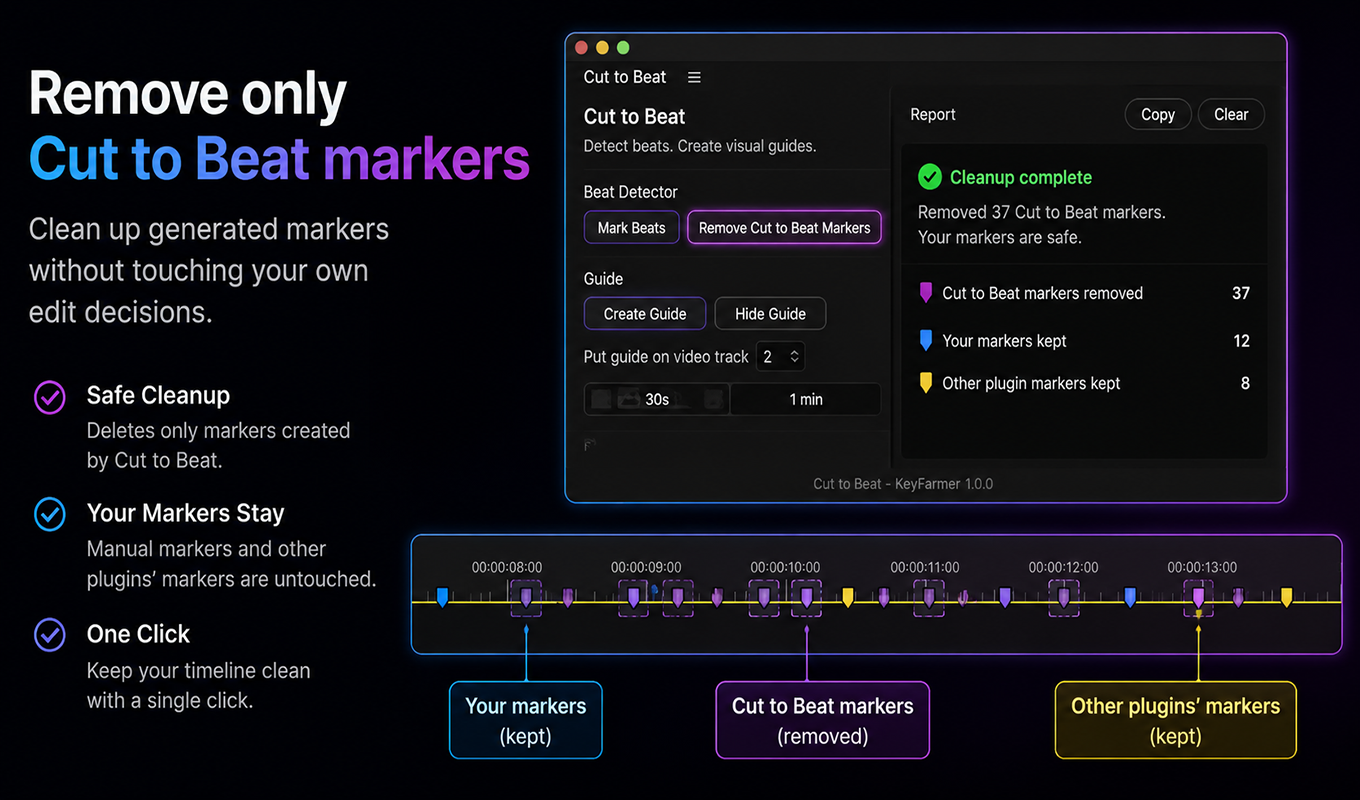
Markers help most when they are readable. If the timeline is filled with too many timing points, hide or remove the ones that are not helping the current pass.
Where Cut to Beat fits
Cut to Beat can create the timing layer quickly. That makes it easier to test whether a gesture, transition, title, or B-roll shot feels better on a beat, a phrase start, or a musical drop.
The plugin does not decide your edit. It reduces the repetitive work of finding rhythm points so you can make better sync decisions.
Workflow
Step-by-step workflow
- 01
Pick the musical event
Decide whether the sync point is a beat, accent, lyric, phrase change, drop, or pause.
- 02
Pick the visual event
Find the frame where the visual action lands: a gesture, impact, title reveal, camera move, or transition midpoint.
- 03
Align the event, not just the clip edge
Trim so the important visual frame meets the musical event. The start of the clip does not always need to sit on the marker.
- 04
Check the phrase
Play several seconds before and after the cut. A single frame can be right while the phrase still feels wrong.
- 05
Add variation
Use exact sync for important moments and looser timing for supporting shots so the edit keeps a human rhythm.
Practical notes
- Action can start before a beat and finish on it.
- Transitions usually read better when their strongest visual moment lands on the musical accent.
- Lyrics and vocal breaths can be stronger sync points than drums in some edits.
Common mistakes
- Snapping every clip edge to the nearest marker without checking the visual action.
- Using transitions to hide weak timing instead of fixing the trim.
- Ignoring the larger phrase and only syncing isolated cuts.
Related guides
Keep building the workflow
FAQ
Questions editors usually ask
What is the difference between syncing cuts and editing to the beat?
Editing to the beat is the larger rhythm approach. Syncing cuts is the specific task of aligning visual events with musical events.
Should I use timeline markers for transitions?
Yes, if the marker helps you place the strongest part of the transition. Do not assume the transition start is the important sync point.
Can Cut to Beat help with visual timing?
It helps by creating the audio rhythm references. You still choose which visual event should land on each reference.
Make this workflow faster in Premiere Pro
Detect beats, create Premiere Pro markers, and build visual guide tracks for faster rhythm-based editing.